
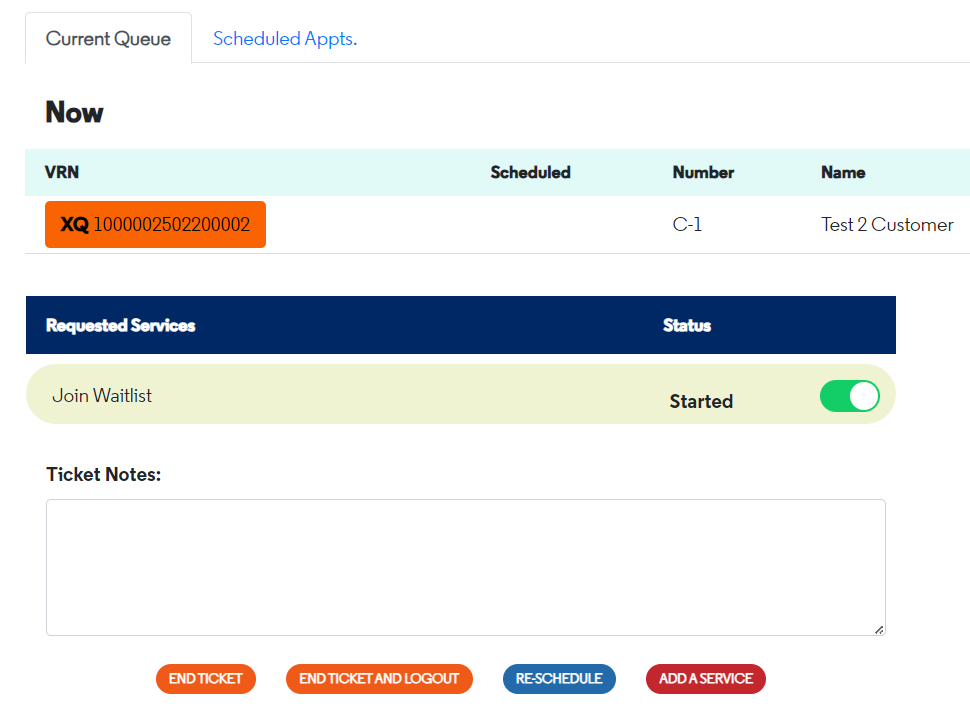
When all requested and offered services have been provided and you want to close the ticket, you can click on End Ticket. If you want to close the ticket and immediately log out, you can use the End Ticket and Logout button instead.
If the button cannot be clicked, it means one or more services have not been completed.
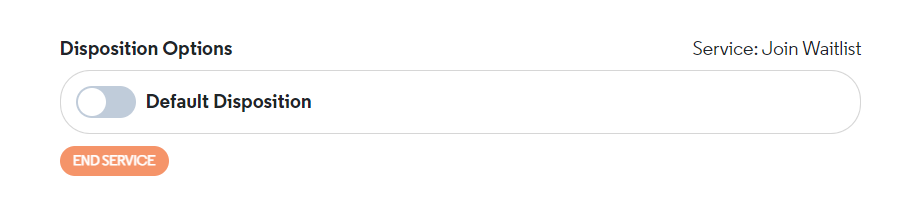
As we can see, the service has not been completed. Please make sure at least one disposition is selected.
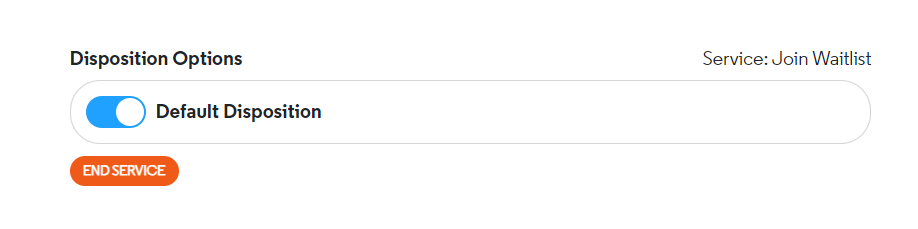
After selecting at least one disposition, you can now click on End Service.
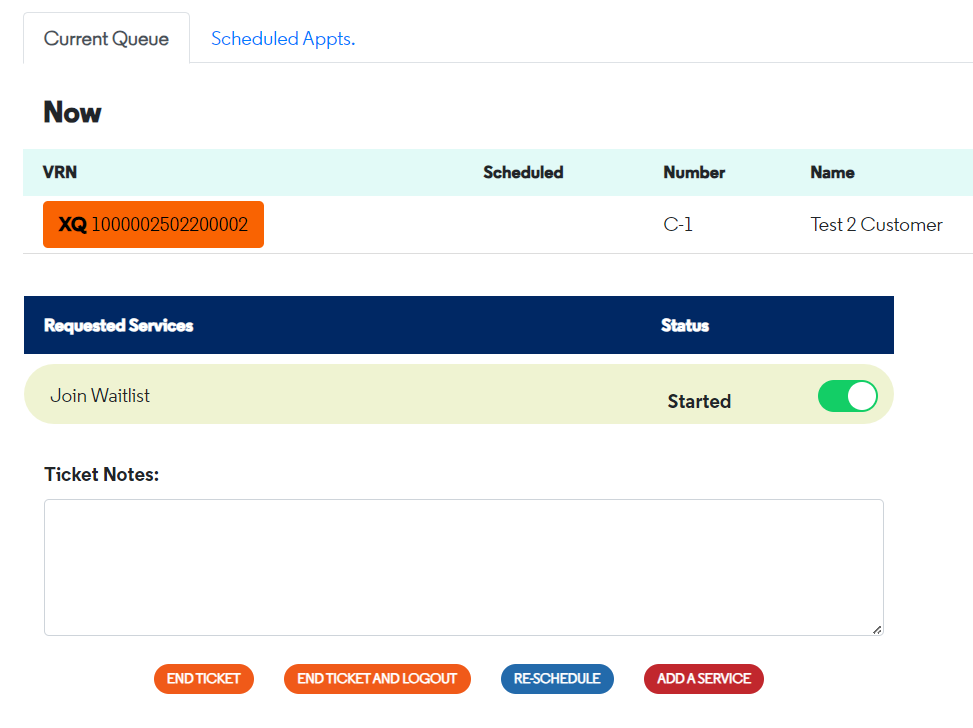
Now, simply click on End Ticket or End Ticket and Logout to successfully close the ticket.

If you need to reschedule the current ticket (maybe some documentation is missing and the customer needs to return at a later date), simply click the blue Re-schedule button.
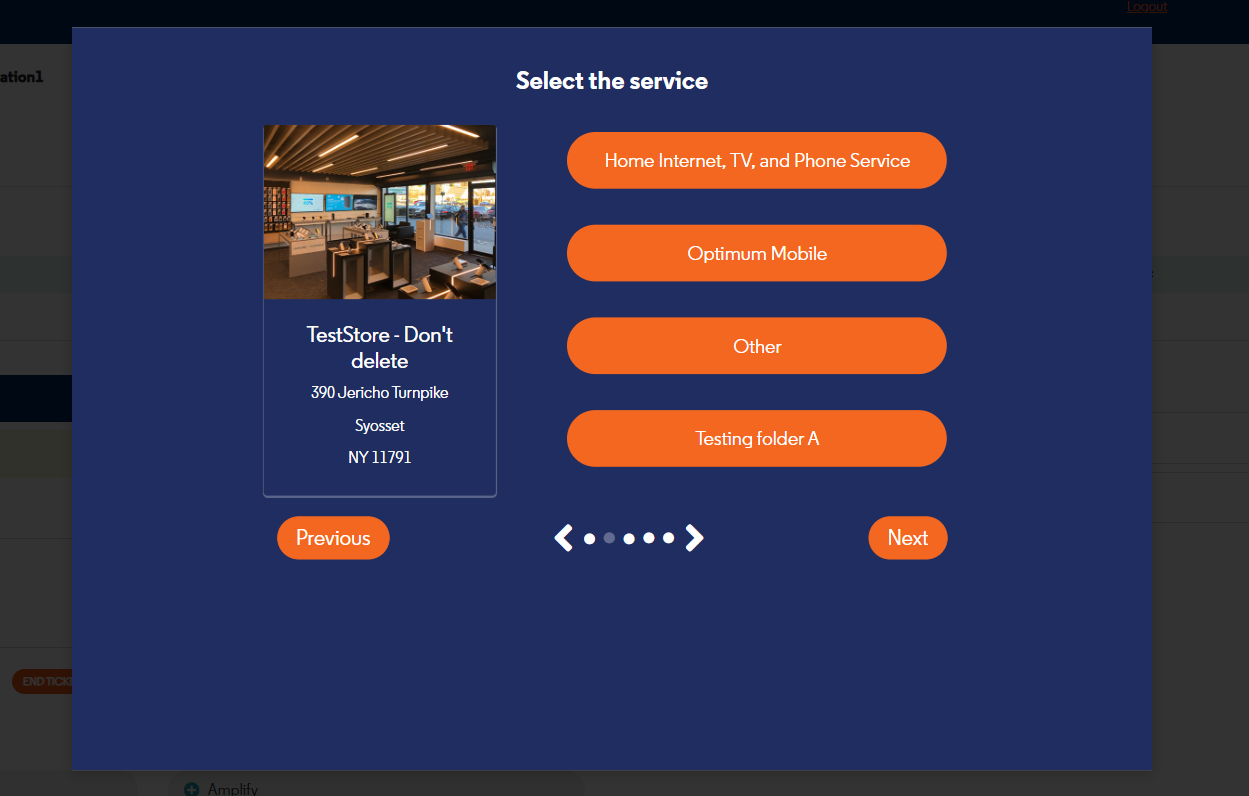
Select the service the customer needs from the available list.
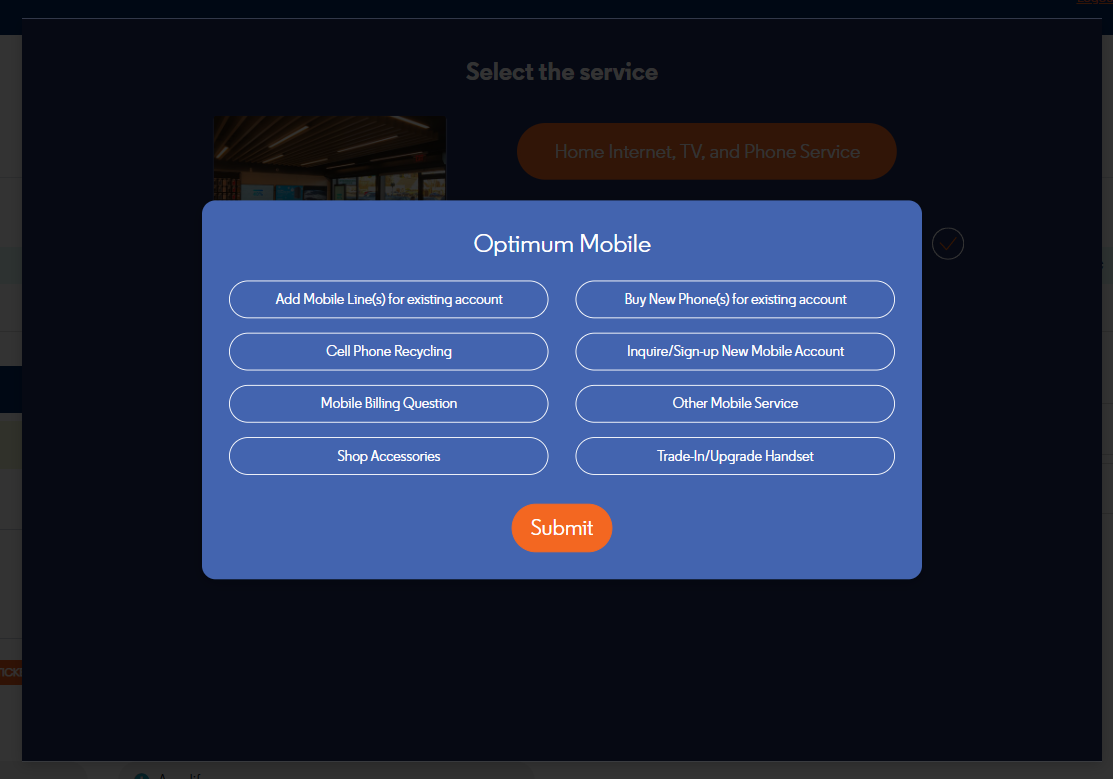
Then select the service options if there are any.
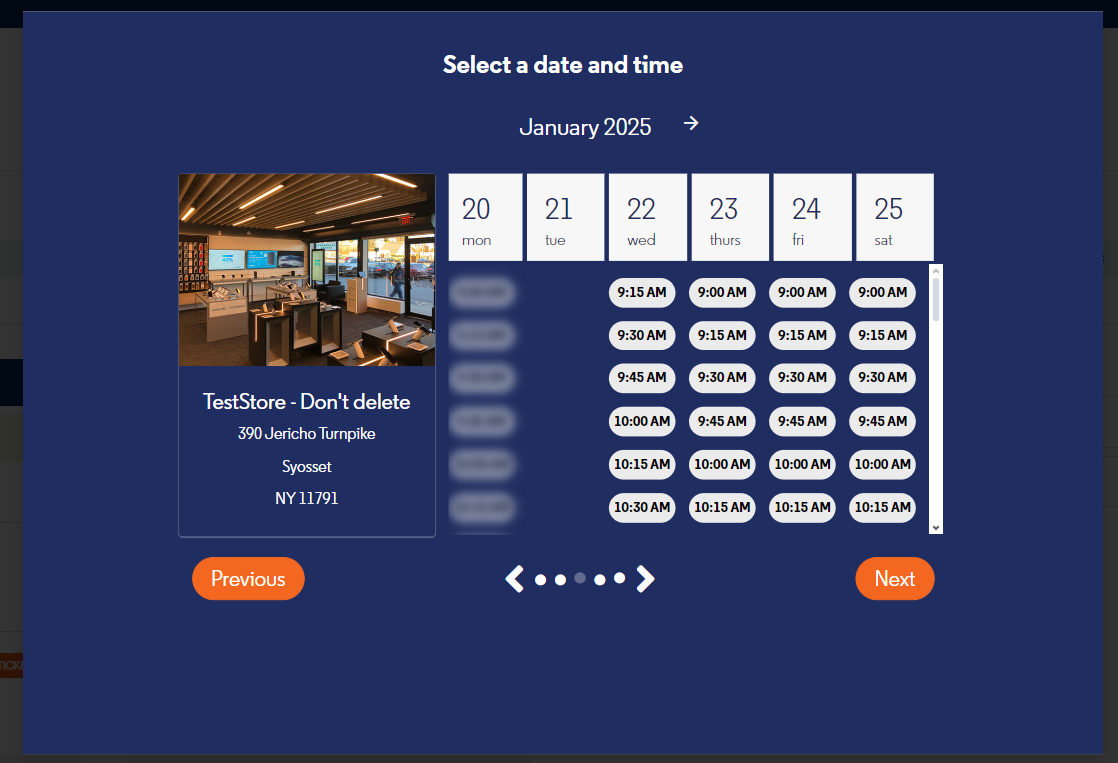
Select the date and time to reschedule.
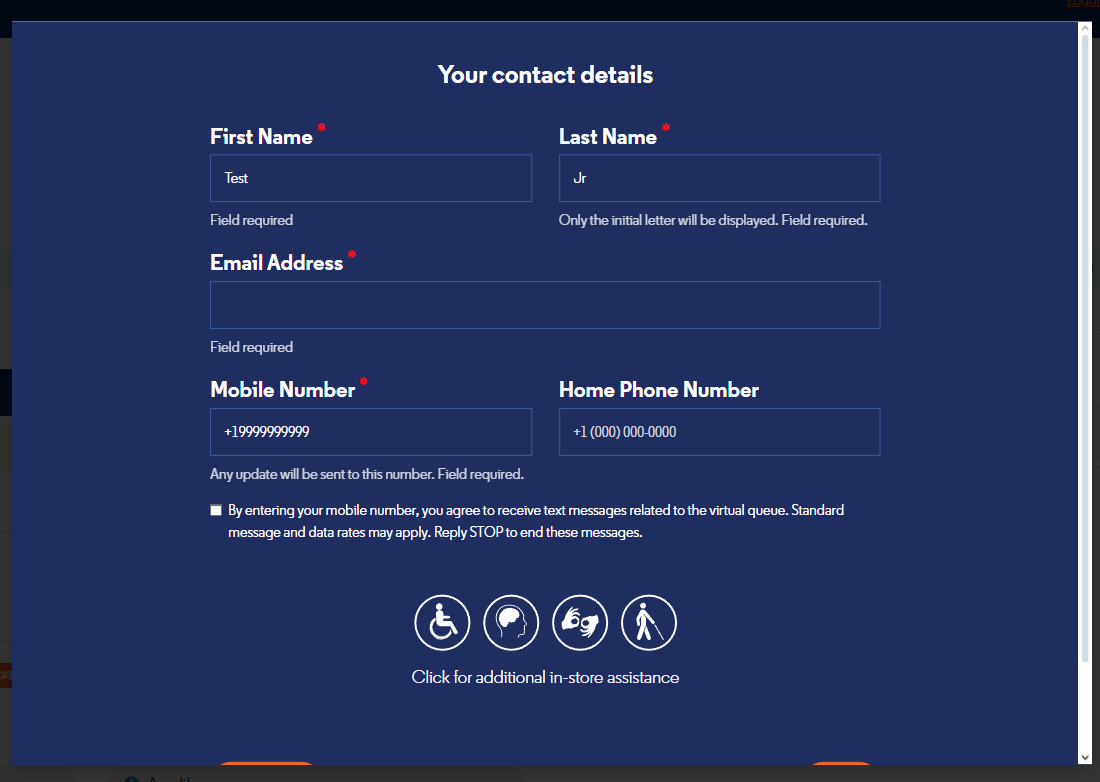
Check the entered details, and if any information is missing, simply fill it in.
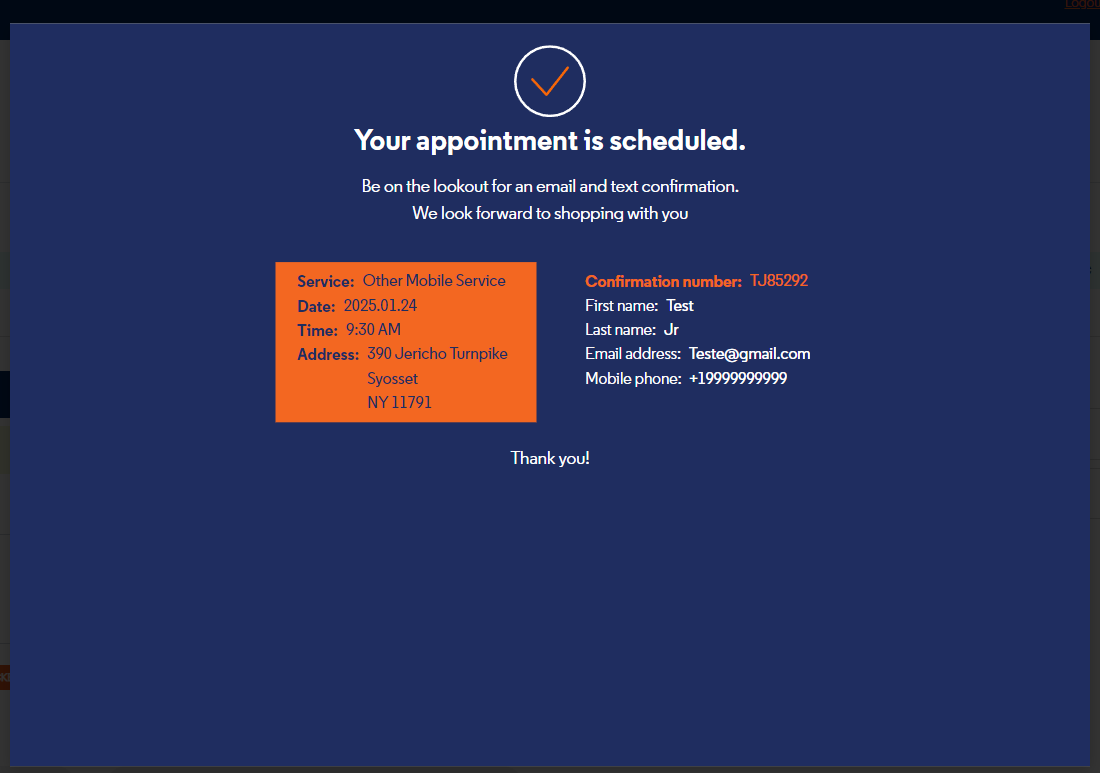
The reschedule is now successfully completed. The customer will receive an email with the new appointment information.